Apr 26, 2011

Oracle Database XE 11g beta

Last week Oracle announced database XE 11g beta:
The beta edition supports only two operating systems:
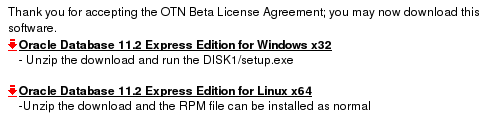
So what about using the Linux x64 edition?
But first: You should consider the following licensing restrictions (see here):
  • Only one CPU will be used.
  • Only one installation on a single computer allowed.
  • The maximum amount of user data in an Oracle Database XE database cannot exceed 11 gigabytes.
  • The maximum amount of RAM that an Oracle Database XE database uses cannot exceed 1 gigabyte
  • HTTPS is not supported natively.
The installation itself is straight forward:
  1. Log on to your computer with root permissions.
  2. Go to the following Web site:

    http://www.oracle.com/technology/products/database/xe


  3. Click Free Download and follow the instructions to select and download the Linux version of Oracle Database XE.
  4. Run the Oracle Database XE executable oracle-xe-11.2.0-0.4.x86_64.rpm to install Oracle Database XE.
    $ rpm -ivh downloads/oracle-xe-11.2.0-0.4.x86_64.rpm

    The installation displays a status of its progress.


  5. When prompted, run the following command:
    $ /etc/init.d/oracle-xe configure
  6. Enter the following configuration information:
    • A valid HTTP port for the Oracle APEX (the default is 8080)
    • A valid port for the Oracle database listener (the default is 1521)
    • A password for the SYS and SYSTEM administrative user accounts
    • Whether you want the database to start automatically when the computer starts
      If you enter Yes, then the database starts immediately

That's it.

Apr 2, 2011

Linux Shell Programming: Converting hex to binary

What about:
  • You have to convert a hex value into a binary value
  • Your only tool is a linux shell
  • You have to start in 30s
  • You have to do it for >10000 hex values
Write a small program in c or java or whatever you would prefer?

What about this:
schroff@hades:$ echo "ibase=16;obase=2; 10 "|bc
10000
schroff@hades:$ echo "ibase=16;obase=2; 1F "|bc
11111
ibase: base of input value
obase: base of output value
The following bases can be used:
  • 16 -> hex
  • 10 -> decimal
  •  8 -> octal
  •  2 -> binary

Mar 24, 2011

Debian 6: IPSec-VPN?! -> Network-Manager

After changing to Debian 6 i had to recompile the Cisco IPSec kernel module (cisco_ipsec.ko). But i ended up with:
hades:/packages/vpnclient# ./vpn_install
Cisco Systems VPN Client Version 4.8.02 (0030) Linux Installer
Copyright (C) 1998-2006 Cisco Systems, Inc. All Rights Reserved.
....
Making module
make -C /lib/modules/2.6.37.3/build SUBDIRS=/packages/vpnclient modules
make[1]: Entering directory `/usr/src/linux-2.6.37.3'
CC [M] /packages/vpnclient/linuxcniapi.o
/packages/vpnclient/linuxcniapi.c:14:28: error: linux/autoconf.h: Datei oder Verzeichnis nicht gefunden
make[2]: *** [/packages/vpnclient/linuxcniapi.o] Fehler 1
make[1]: *** [_module_/packages/vpnclient] Fehler 2
make[1]: Leaving directory `/usr/src/linux-2.6.37.3'
make: *** [default] Fehler 2
Failed to make module "cisco_ipsec.ko".
Ok... this does not work anymore.
But the network-manager has one tab labelled vpn... What about using this one?

The first try was not successful, because the "add"-button was disabled. After some googling around there was a hint to install the following package:
apt-get install network-manager-pptp-gnome
The button was enabled but only Point-to-Point-Tunneling-Protocol could be chosen. A lookup on http://packages.debian.org showed the following packages in addition:
apt-get install network-manager-openvpn-gnome
apt-get install network-manager-vpnc-gnome
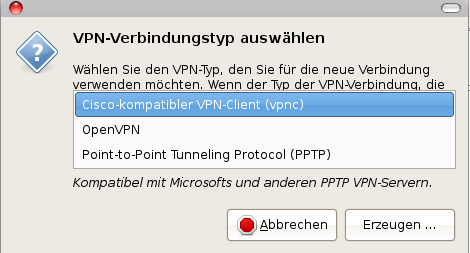
After installing these packages the following vpn-types were selectable:

And with choosing vpnc the following dialog was shown

and after filling in all parameters, the vpn connection was established without any problem...


Mar 18, 2011

How to enable the firefox-button on linux

Have you tried firefox 4 on your linux box?
Then you expected something like this:

But on linux the menu bar is enabled as default and no firefox button is present at the window decoration...

grrrr....

But there is an easy way to get the firefox button enabled:
Just disable the menu bar and firefox button will appear

If you want to replace the text with a button try this posting at glandium.org.
If you are using the extension tree style tab, the button looks this way: